How to create an area chart
We are now going to take a look at how to create a area chart, but this time we will not use statically created values like in the section addChart.
When making a calculator the data normally has to be… calculated (surprising, right?) based on the input given by the user. Behind this calculation there is always a function that depends on some parameters, normally it’s either x or time, but could be anything.
To create the data we will use a for loop and we will use the method push which adds a new entry at the end of an array. Our ‘entry’ represents a point and is an array with the values we want to display.
Practical example
We first define the example function: f(x) = xⁿ + offset. We will display the data from x = a to x = b. The user will input two different values for n and offset giving us the chance to show several datasets in one graph.
Our goal here is to create a area chart that will show two different functions together. The user will define n and offset for each of our functions.
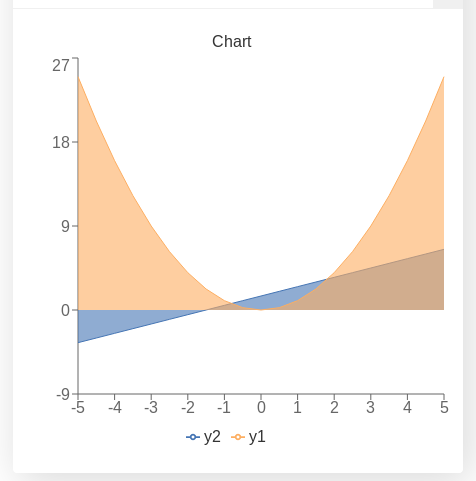
Example of a area chart with two user defined functions
We have chosen the following colours for this chart: blue2 (for n1 and offset1) and orange (for n2 and offset2) which corresponds to positions 2 and 8 in the array of data [1] as shown in the color coding in charts picture we showed in a previous section.
Warning
The position of the labels need to match the position of the data in the array, otherwise the data will not be shown.
See also
We have created a calculator using this code so that you can see the results for yourself. Check it out at Charts (area) on BB
Code and comments
Let’s look that the example code now:
1 2 3 4 5 6 7 8 9 10 11 12 13 14 15 16 17 18 19 20 21 22 23 24 25 26 | 'use strict';
omni.onResult(['a','b','offset1','n1','n2', 'offset2'],function(ctx){
var chartData = [],
n1 = ctx.getNumberValue('n1'),
n2 = ctx.getNumberValue('n2'),
offset1 = ctx.getNumberValue('offset1'),
offset2 = ctx.getNumberValue('offset2'),
a = ctx.getNumberValue('a'),
b = ctx.getNumberValue('b');
for(var i = a; i <= b; i+=0.5){
chartData.push([mathjs.round(i,2), // x-value
, // blank data to match colors
mathjs.pow(i, n1)+offset1, // blue2 y-value
,,,,, // black data to match color
mathjs.pow(i, n2)+offset2 // orange y-value
]);
}
ctx.addChart({type: 'area',
labels: ['x',, 'y2',,,,,, 'y1'],
data: chartData,
title: "Chart",
afterVariable: "",
alwaysShown: false
});
});
|
As you can see, there is little to not difference between making a basic area chart and making a line or bar chart. We have purposely not activated the option to stack the data as this option is very prone ot errors.
Warning
WARNING: Stacking option only works in very specific and simple scenarios. Before you use it we recommenc you check the section Stacking a.k.a. playing Jenga.
The area chart is a very useful alternative to the bar chart for continuous values. It is also a very good way to show percentages over time as a kind of time-dependant pie chart.
Tip
For cleaner code that is easy to understand consider using functions when performing complex operations inside the for loop. You might also want to look up the Advanced uses of arrays section or the map method.
Footnotes
| [1] | The first position in an array is the position “0” (zero) and corresponds to the x-value |